Studio 87 › TV apps › Stardrift TV Launcher
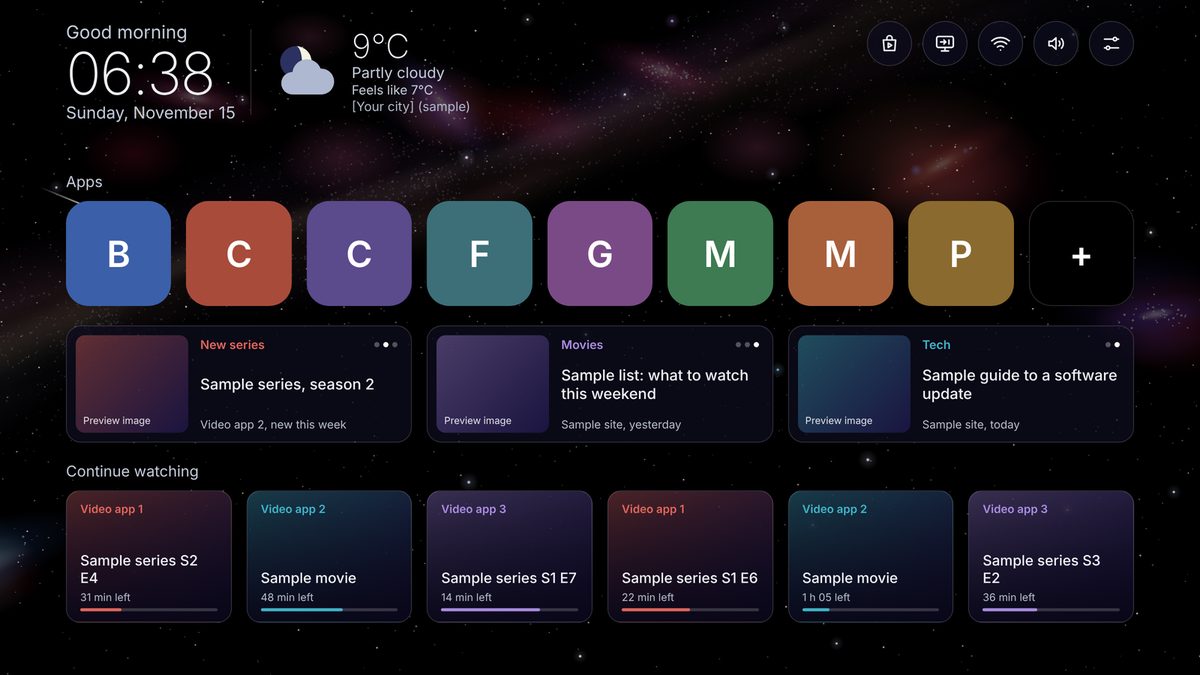
Interactive mockup with sample content only: click it, then use the arrow keys, Enter and Escape, as you would with a TV remote. Sound starts after the first click. Open full screen
Stardrift TV Launcher
A calm, ad-free home screen for Google TV: a slowly drifting night sky, your apps, your news, your shows.
How to get it ▶ Try it in your browserAbout Stardrift TV Launcher
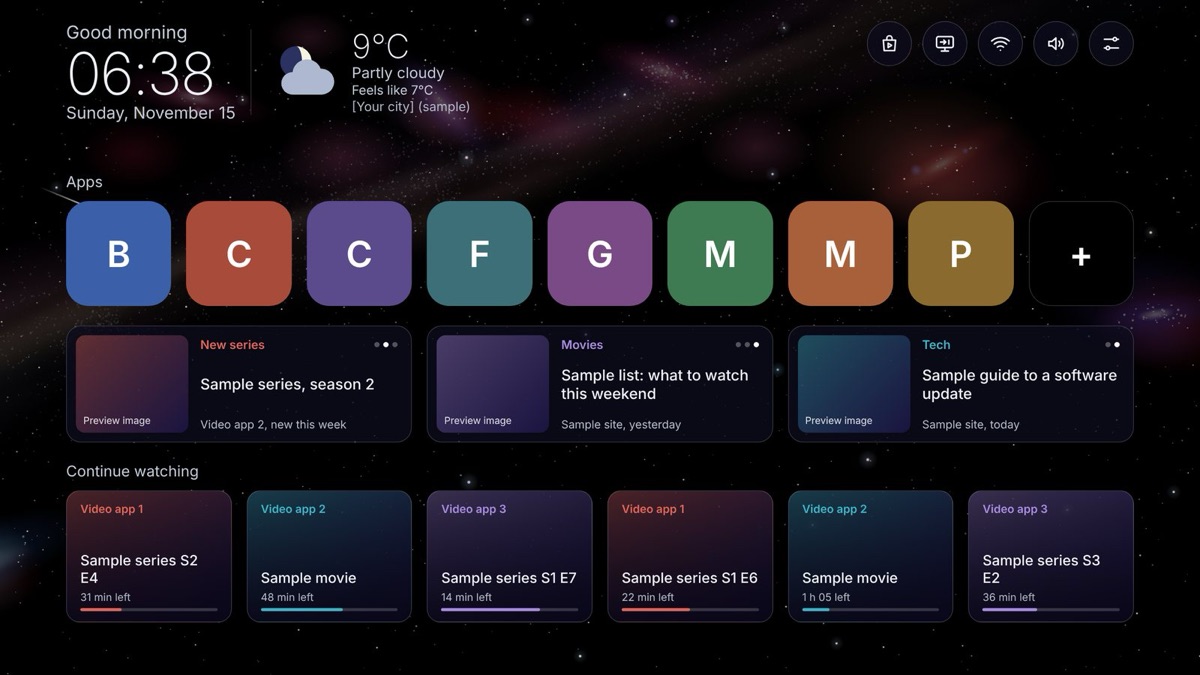
Stardrift replaces the busy Google TV home screen with something quiet. Behind everything is a black night sky that drifts slowly past galaxies, coloured stars and the odd satellite, one full turn every 20 minutes. On top you get a greeting, the clock and the weather, your apps, a row of news you chose yourself, and what you were watching. No ads, no suggestions, nothing sponsored. It is made to be simple, and it sounds as calm as it looks, with a soft ambient song and gentle sounds as you move around.
Status: in development.
What it does
- A night sky that drifts slowly, with galaxies, stars, a rare satellite and a quiet nova
- Greeting with your name, clock, date and weather
- Reorder your apps, hide the ones you don't want, and give icons a Black or White look
- Show, hide and reorder the home rows from Settings
- News row from the feeds you choose, plus Continue watching
- Soft ambient song and interface sounds, each with its own switch and volume
- Add news feeds from your phone
- Close background apps, clear cache and run a speed test from the launcher
- Its own matching screensaver
- No ads, no suggestions, no sponsored items
android-tvgoogle-tvlauncherno-adsopen-source
How to use it
Everything works with the TV remote: arrows move, OK opens, Back goes back, and press and hold on an item opens its menu. Try it yourself above.
Read the full manual, with every screen · Manual as a PDF
 Simple on purpose
Home has four things: greeting, clock and weather; your apps; a row of news cards; and Continue watching. The sky behind them is only decoration and asks for no attention.
 Your apps, your order
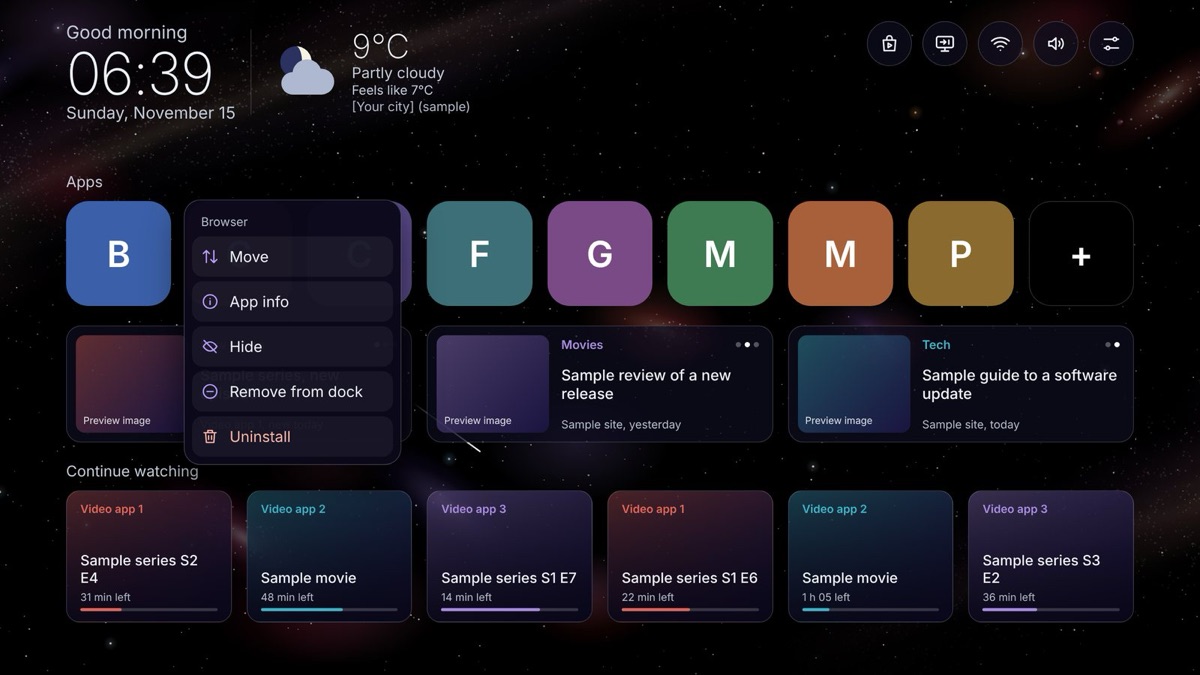
Put the apps you use on the dock in the order you like. Press and hold an app to move it, open its info, hide it, take it off the dock or uninstall it. The last tile opens All apps, and some apps can have a Black or White icon look.
 Rows you can reorder or hide
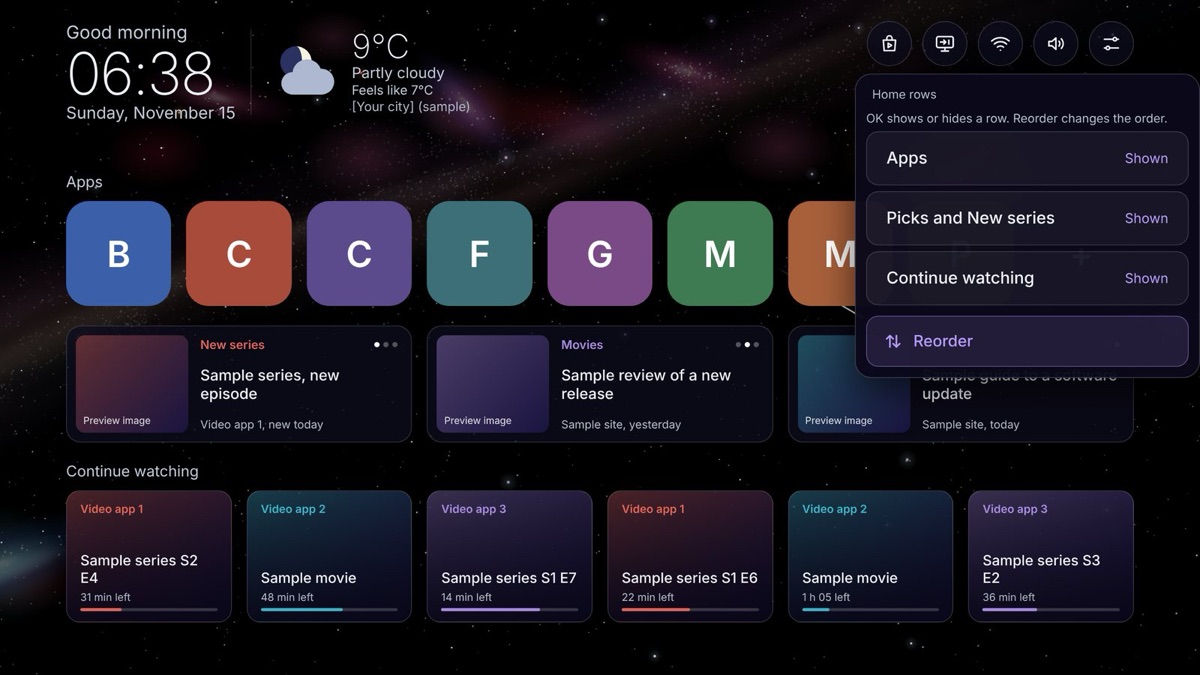
In Settings, Home rows, switch Apps, News and Continue watching on or off and put them in any order. A hidden row takes no space and the others move up.
 Your own news from RSS feeds
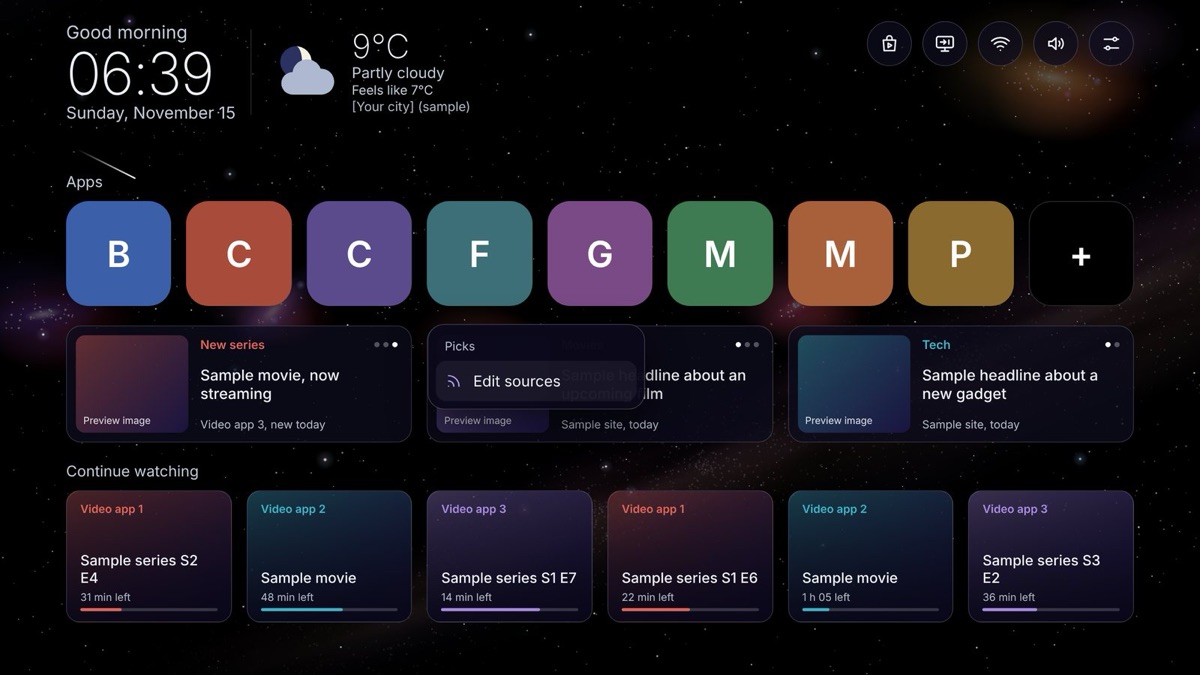
The news row starts empty. Add RSS feeds, group them into cards you name yourself (up to four), and open any headline in a reader. Press and hold a card to refresh it or edit its sources. The manual explains how to find a feed, and your AI assistant can help.
 Add feeds from your phone
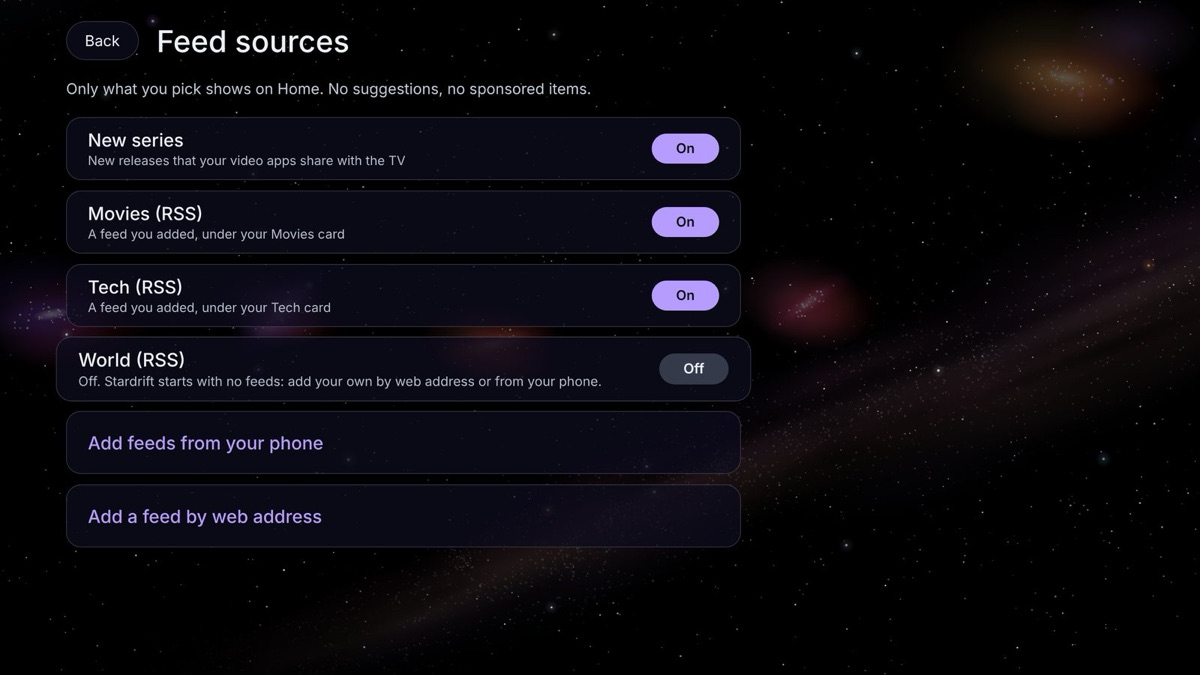
Typing web addresses with a remote is slow. Choose Add feeds from your phone, open the address the TV shows on your phone (same Wi-Fi), type the PIN, and paste up to 20 feeds at once. Each one is checked, and the page only exists while that screen is open on the TV.
 Close background apps and clear cache
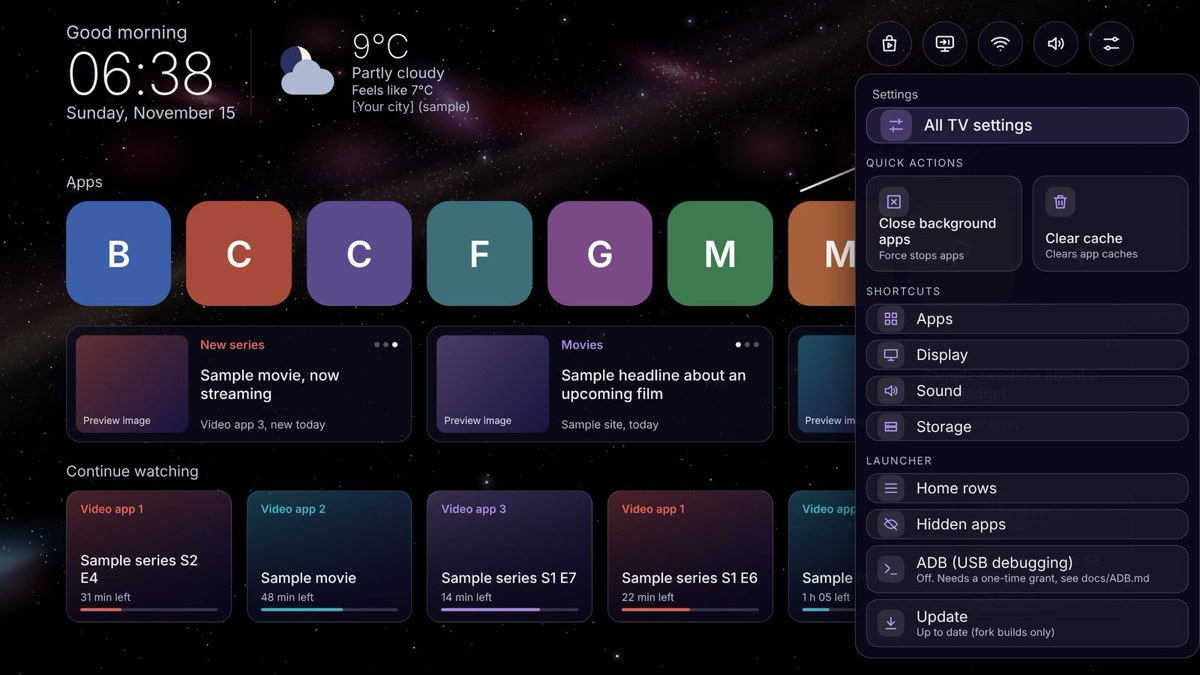
In Settings, Quick actions: Close background apps stops the apps you installed that are still running (the TV's own apps are left alone), and Clear cache empties every app's cache and tells you how much space it freed. Both use the TV's own debugging service, so the TV asks you once to allow it.
 Speed test
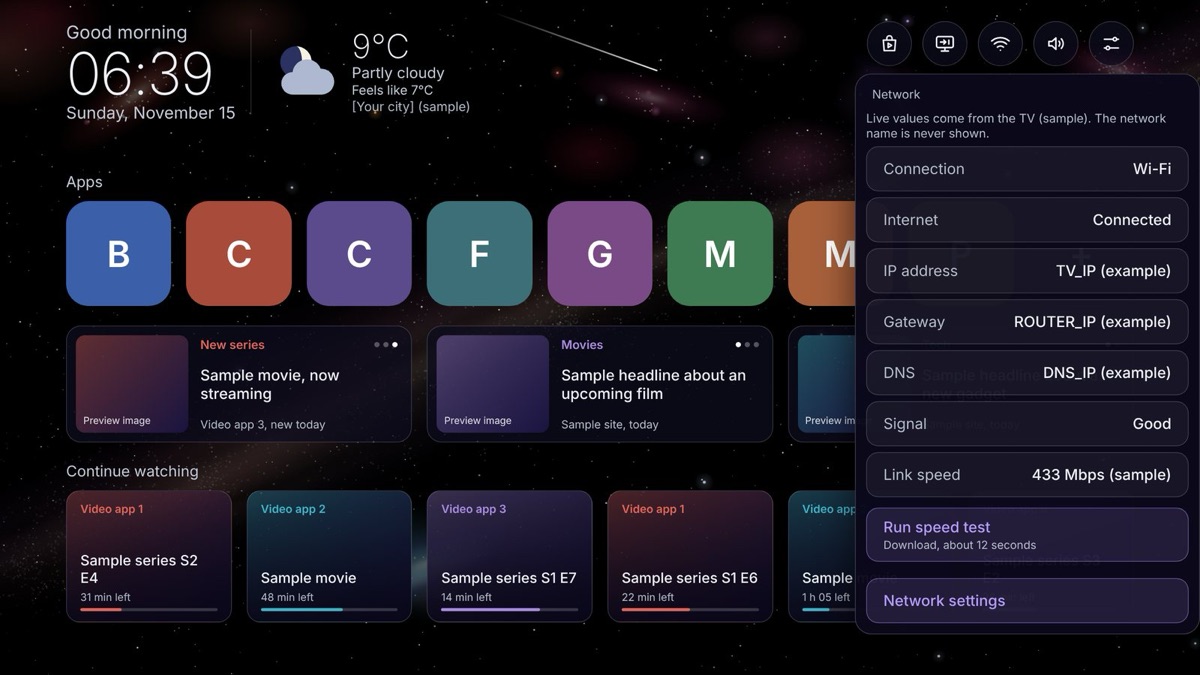
The Network icon shows your connection, signal, IP address, gateway and link speed, and runs a download speed test (about 12 seconds) with latency. The name of your network is never shown.
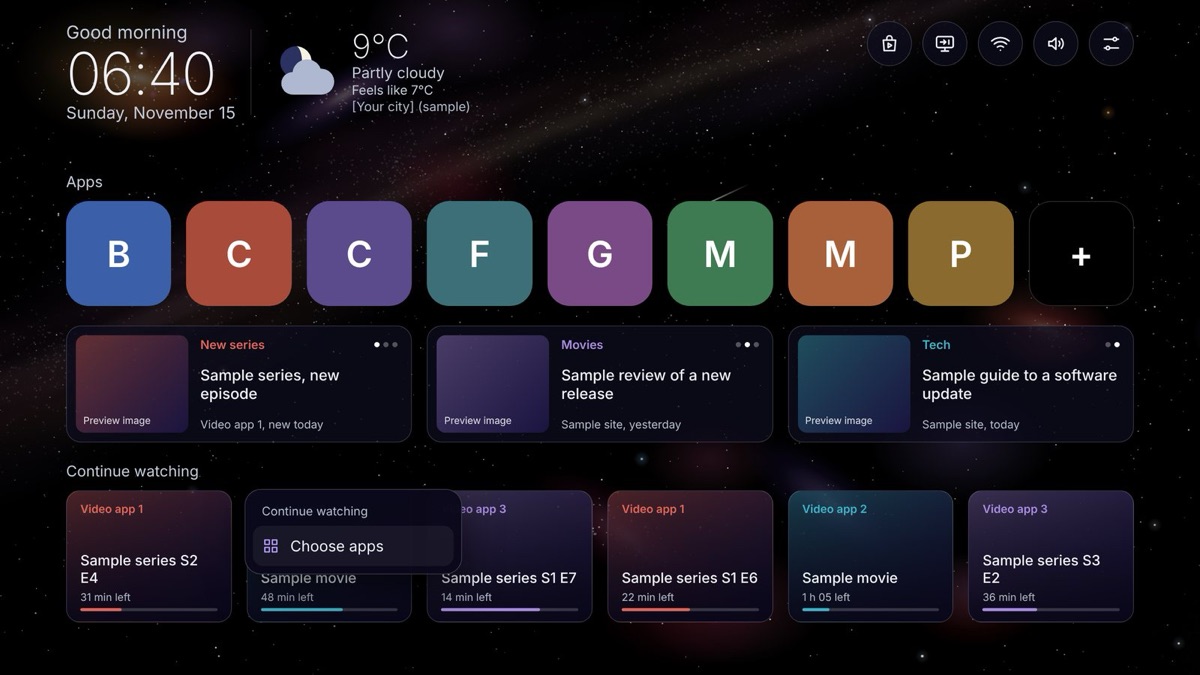 Continue watching
Shows what you were in the middle of, when your streaming apps share it with the TV. If they don't, it shows the apps you opened last. Press and hold the row to refresh it or choose which apps it follows.
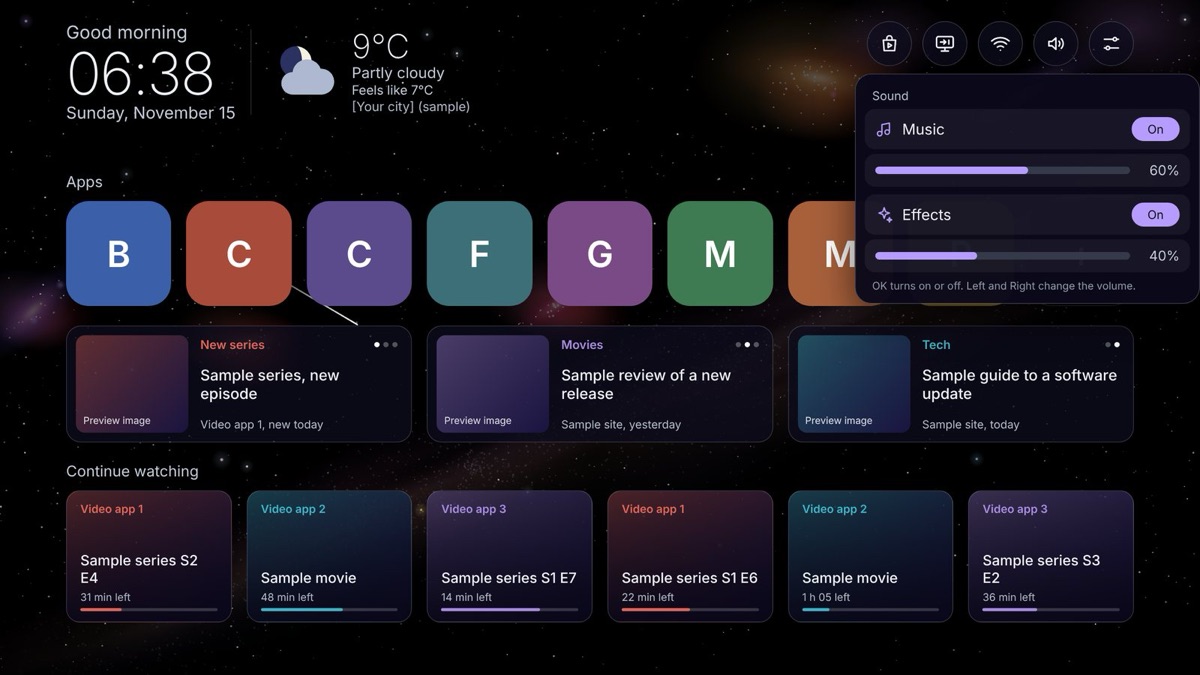 Sound that stays out of the way
A soft ambient song fades in on the home screen, and gentle sounds mark moving, selecting and going back. Music and effects have separate switches and volumes, and the music stays silent when another app plays audio.
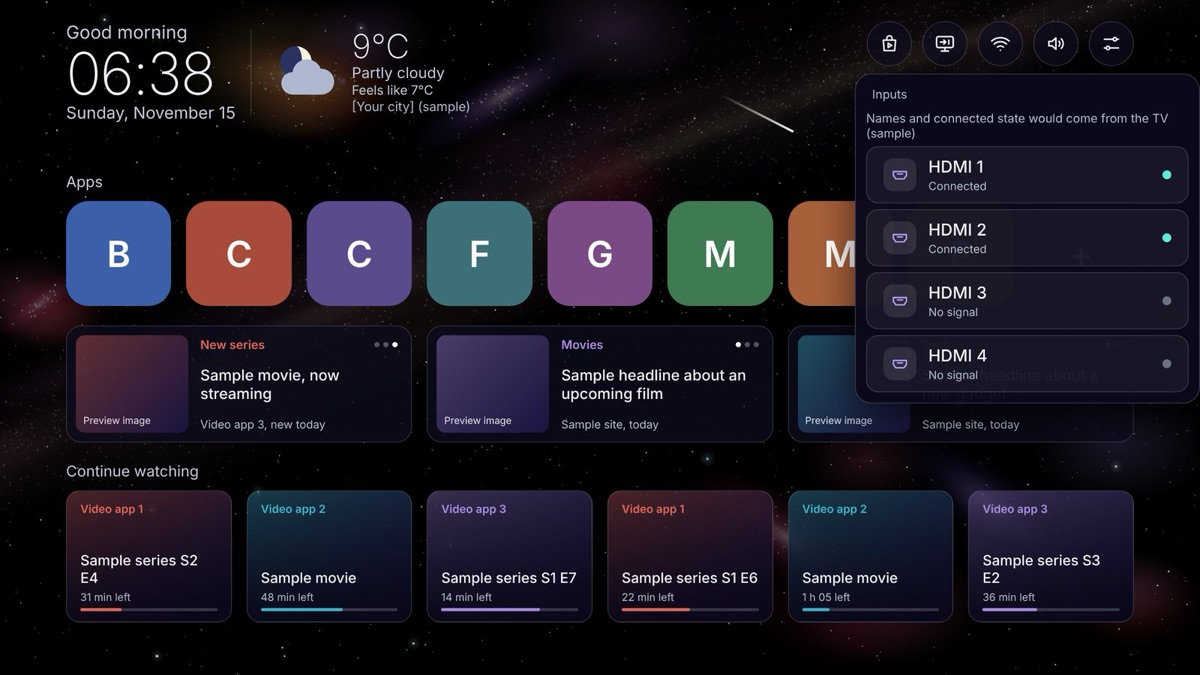 Switch inputs without the remote hunt
The Inputs icon lists the TV's HDMI inputs and whether each has a signal, so you can switch from the home screen.
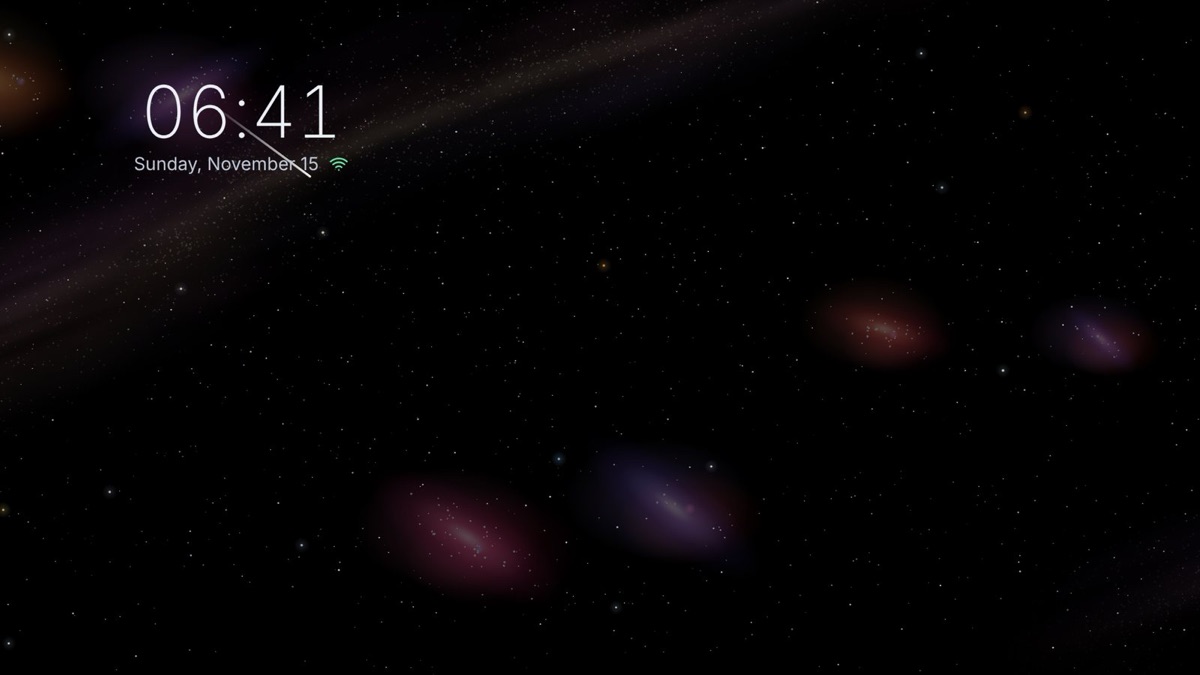 A matching screensaver
The same drifting sky with a 24-hour clock, the date and a Wi-Fi icon, with the ambient song if Music is on.
Get it on your TV
There is no ready-made install file. You build your own copy, signed with your own key, and GitHub does the building for you. You don't need Android Studio.
- Fork the project on GitHub.
- Create a signing key and add two secrets to your fork.
- Run the Build APK workflow in your fork, then download the file from its Releases page.
- Install it on the TV with ADB, using your TV's address: adb connect TV_IP:PORT
What to expect
- Works on Google TV and Android TV, Android 8.0 or newer.
- It's a hobby project, tested mostly on one TV, and comes as is. If it doesn't suit your model you can fork it and fix it.
- Weather comes from Open-Meteo, and the news row only talks to the feeds you add.
- The Home button may still open Google's own home screen on some TVs; the manual explains how to make Stardrift the default.